1. Add a spend (10 seconds)
- Tap the big pink + (or press N on a computer).
- Type the amount. The keyboard opens straight away.
- Pick a category.
- Tap Save. Done!
💡 Everything else (shop name, date, how you paid) is optional. Fill it in only if you want to.
2. Split a bill with friends
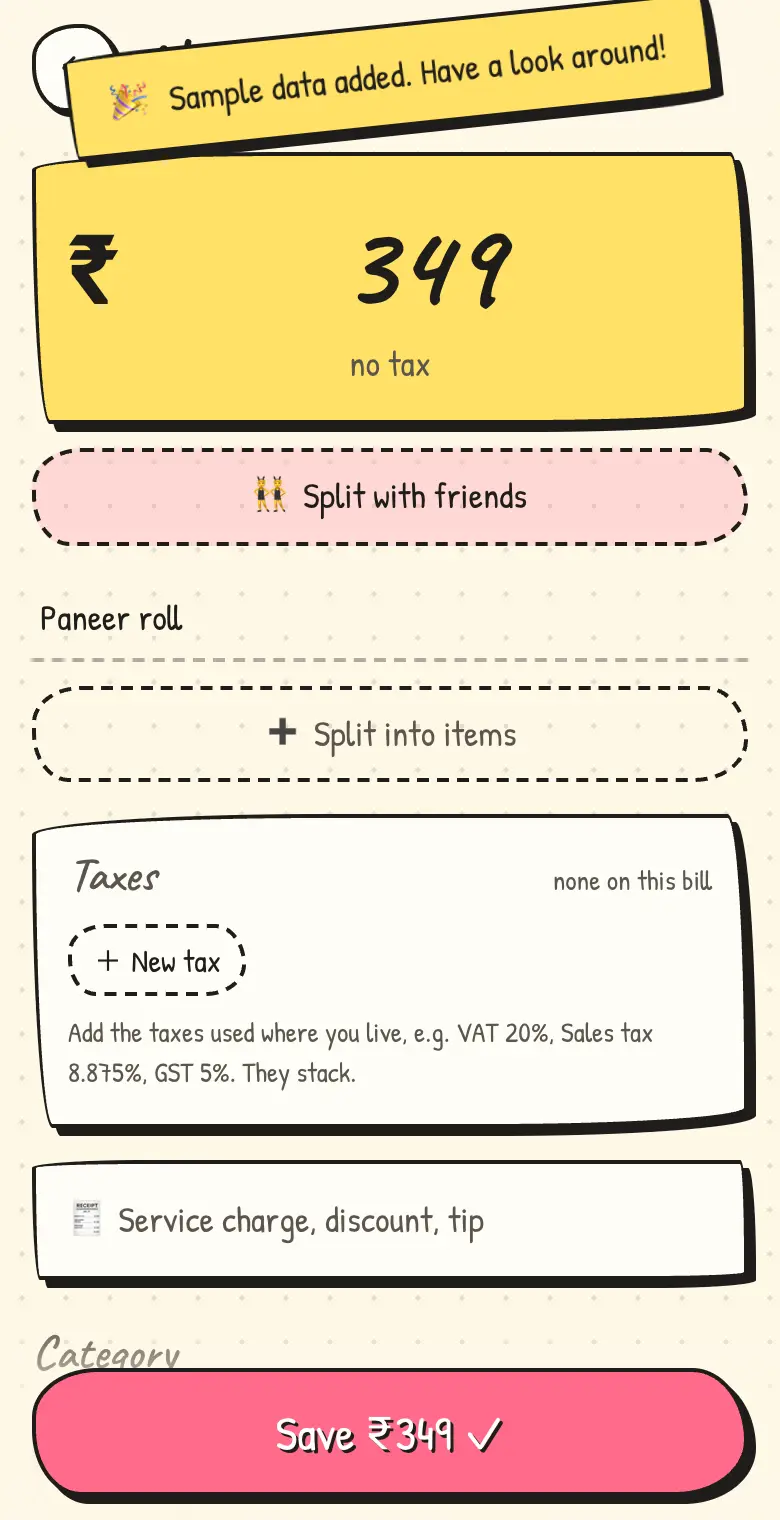
- On a new spend, tap 👯 Split with friends and add who was there.
- Tap Split into items and add each dish or drink with its price.
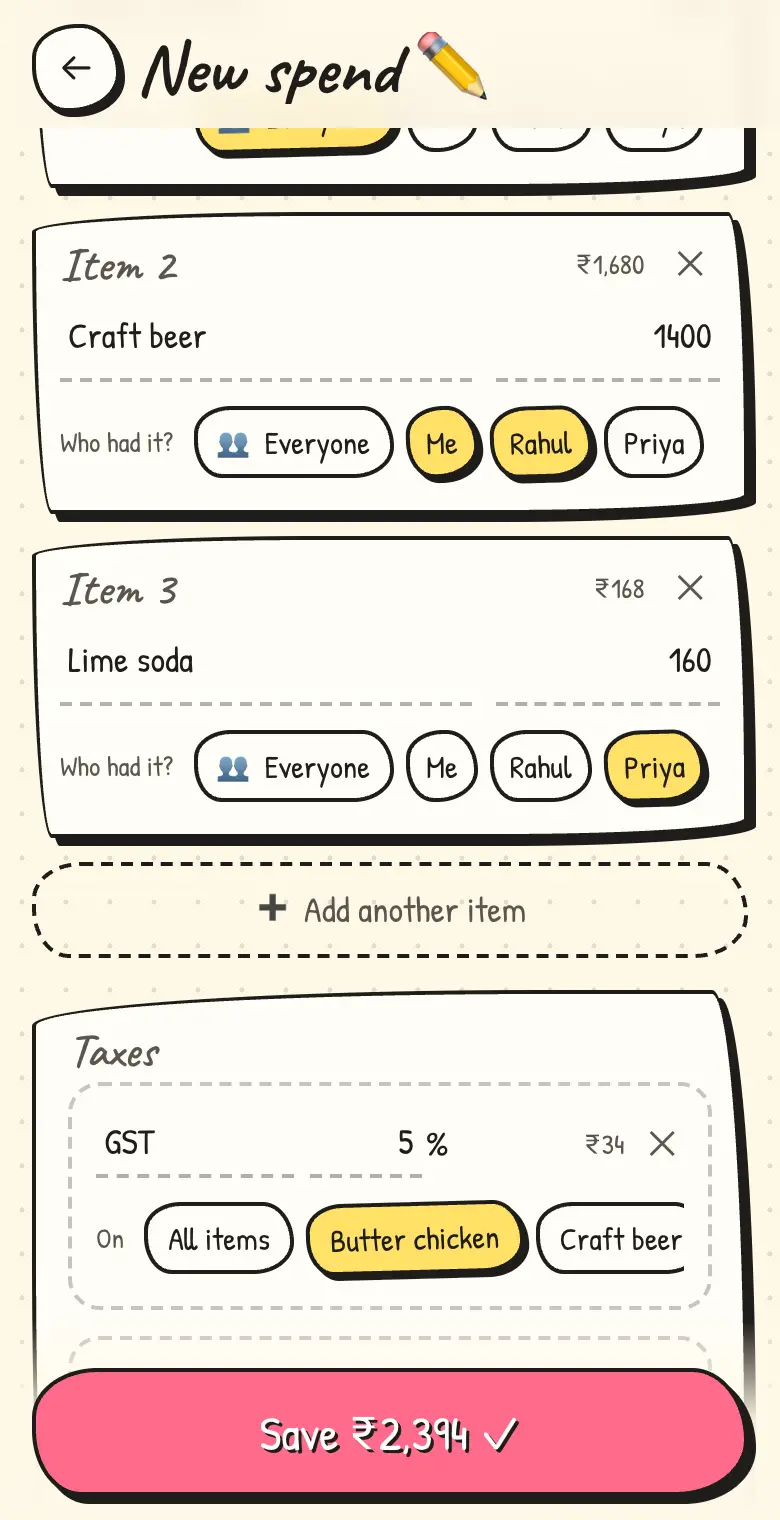
- Under Who had it?, keep Everyone or tap just the people who shared it.
- Pick Who paid? (that's usually you).
💡 Each person also pays the tax on their items, so if only two of you had the beer, only you two pay its VAT.
3. See who owes what
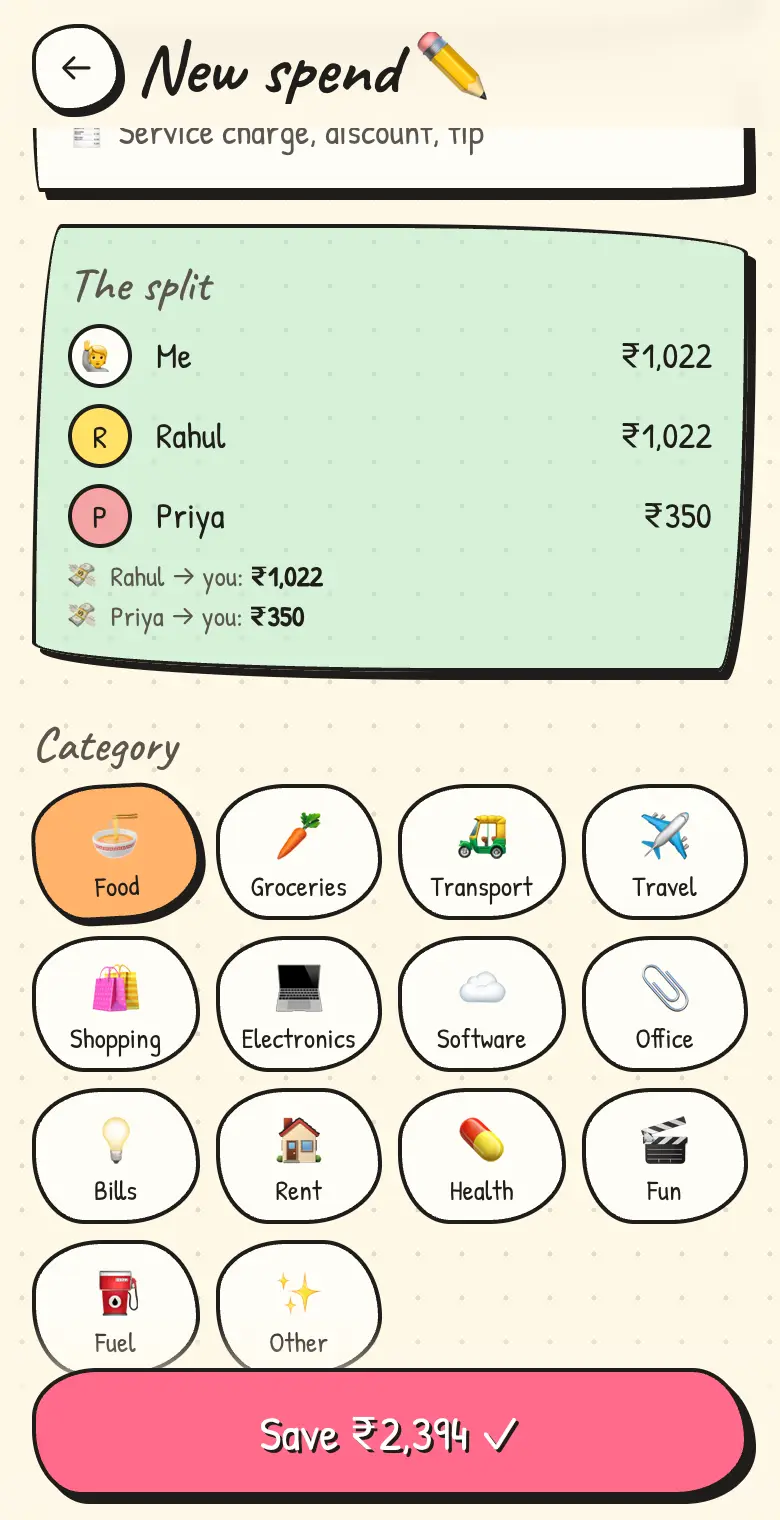
As you type, Doodle Bill shows each person's share, including their part of the tax, service charge and tip. Shares always add up to the exact bill, down to the paisa.
After saving, open the bill to see the receipt and the split. Tap 🔗 Share to send it to the group so everyone can see their share.
💡 When everyone has paid you back, tap 🤝 Mark all settled.
4. Taxes, your way
Add whatever taxes your bill shows, wherever you are: VAT, GST, CGST, sales tax, a city tax… They all stack.
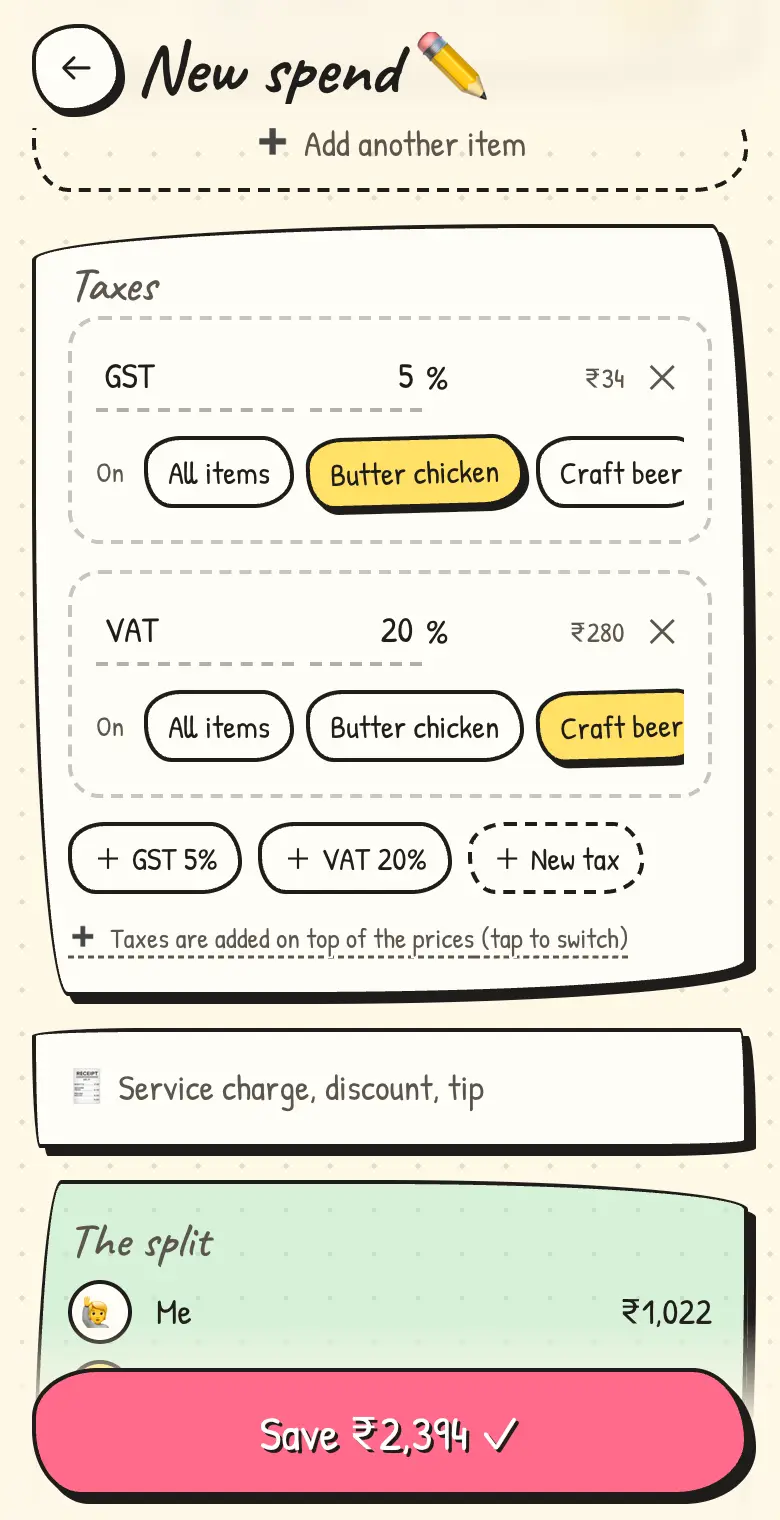
- In the Taxes box, tap + New tax, type its name and rate (e.g. VAT 20%), and tap Add tax. It's saved to My taxes, so next time it's one tap.
- Add as many as the bill has. A bar bill might have GST on the food and VAT on the drinks.
- Under On, keep All items or tap only the items that tax applies to.
- Prices already include tax? That's the default. If tax is added on top (like most restaurant bills), tap the line at the bottom to switch.
- With a service charge, choose per tax whether it's charged on that too.
- Edit or remove saved taxes anytime under 🎒 Backup → My taxes.
- Any currency: pick yours under 🎒 Backup → Currency. Abroad? Tap the currency symbol next to the amount to log one spend in another currency. Each trip has its own currency too. Totals in different currencies are shown side by side, never converted.
5. Trips & outings
Keep everything from a trip, a wedding, a dinner out or your flat in one place, with its own total.
- Go to 🧳 Trips → New trip. Give it a name. Add friends now, or later, or never (a trip can be just you).
- Add spends inside the trip (➕ Add spend), or pick the trip in the Trip row on any new spend.
- Already logged something? Open it and tap 🧳 Move to a trip…
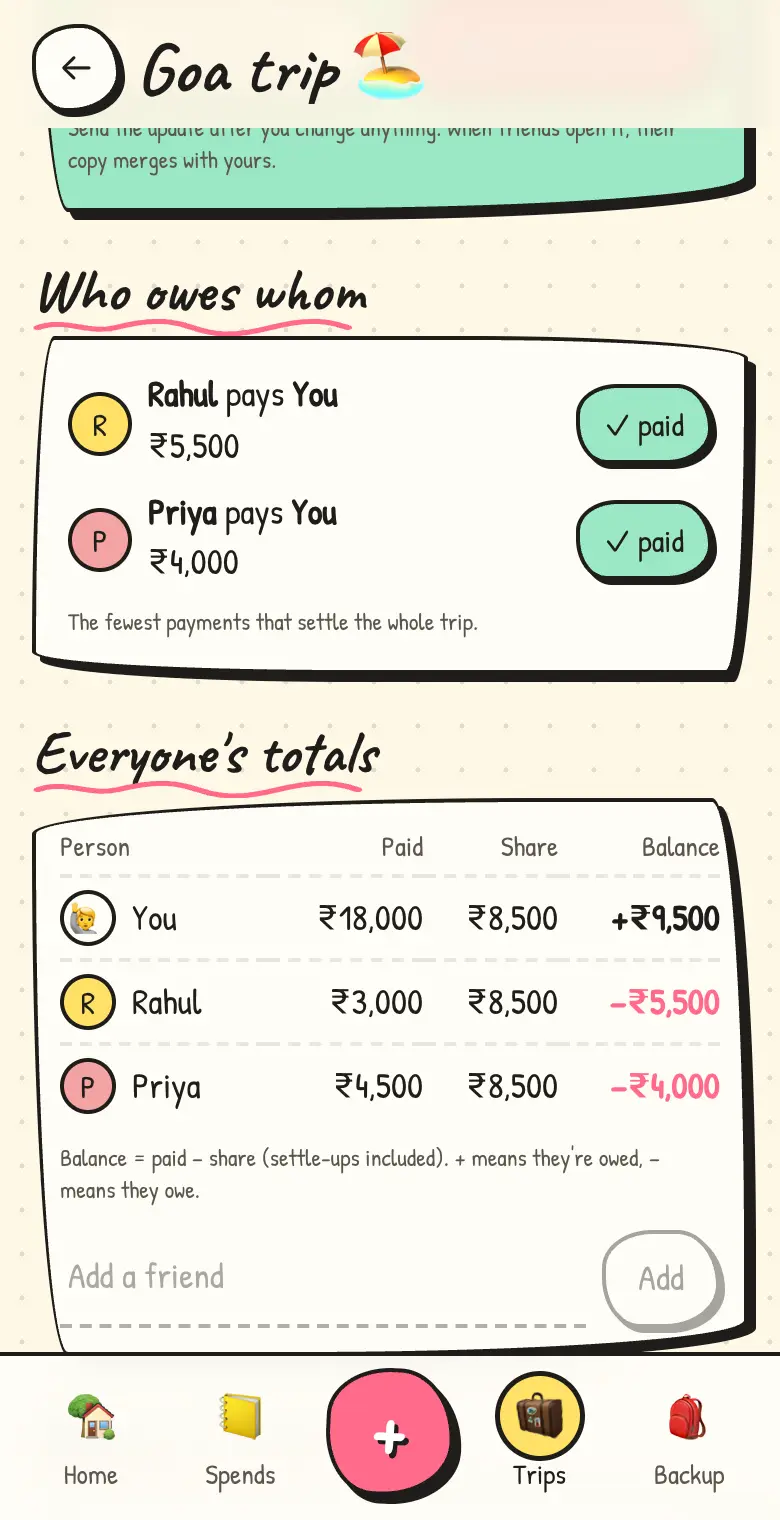
- With friends: tap 📤 Send update and post the link in your WhatsApp group. Friends open it, pick their name, add their spends and send it back. Open the newest link anyone sends, and your copy updates.
Who owes whom shows the fewest payments that settle the whole trip. Tap ✓ paid when money changes hands. Everyone's totals shows what each person paid, their share, and the balance.
💡 Each person's entries are signed by their own phone: added by Amit ✓ means it really came from Amit, and only Amit can change or delete it. Anyone with the trip link can see the trip and add their own spends, so share it only in the trip's own chat.
6. Share a bill or a month
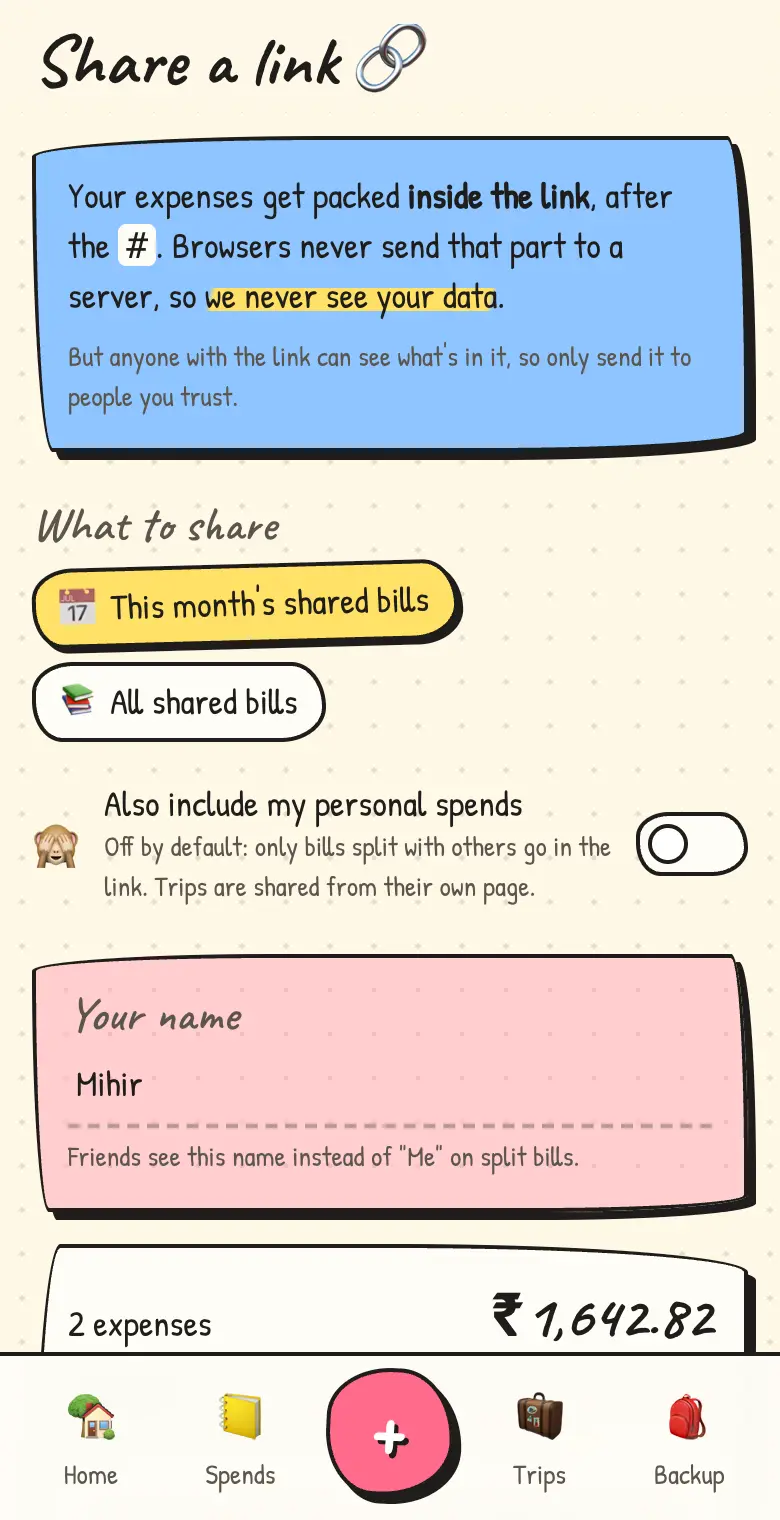
Tap 🔗 Share on any bill, or use share this month on the home screen. Copy the link or send it straight to an app.
The data is packed inside the link, so there's no account to make and nothing to install. Whoever opens it sees exactly what you sent, and can tap Save to mine to keep a copy.
7. Back up & move to a new phone
Your expenses live only on this device, so keep a backup:
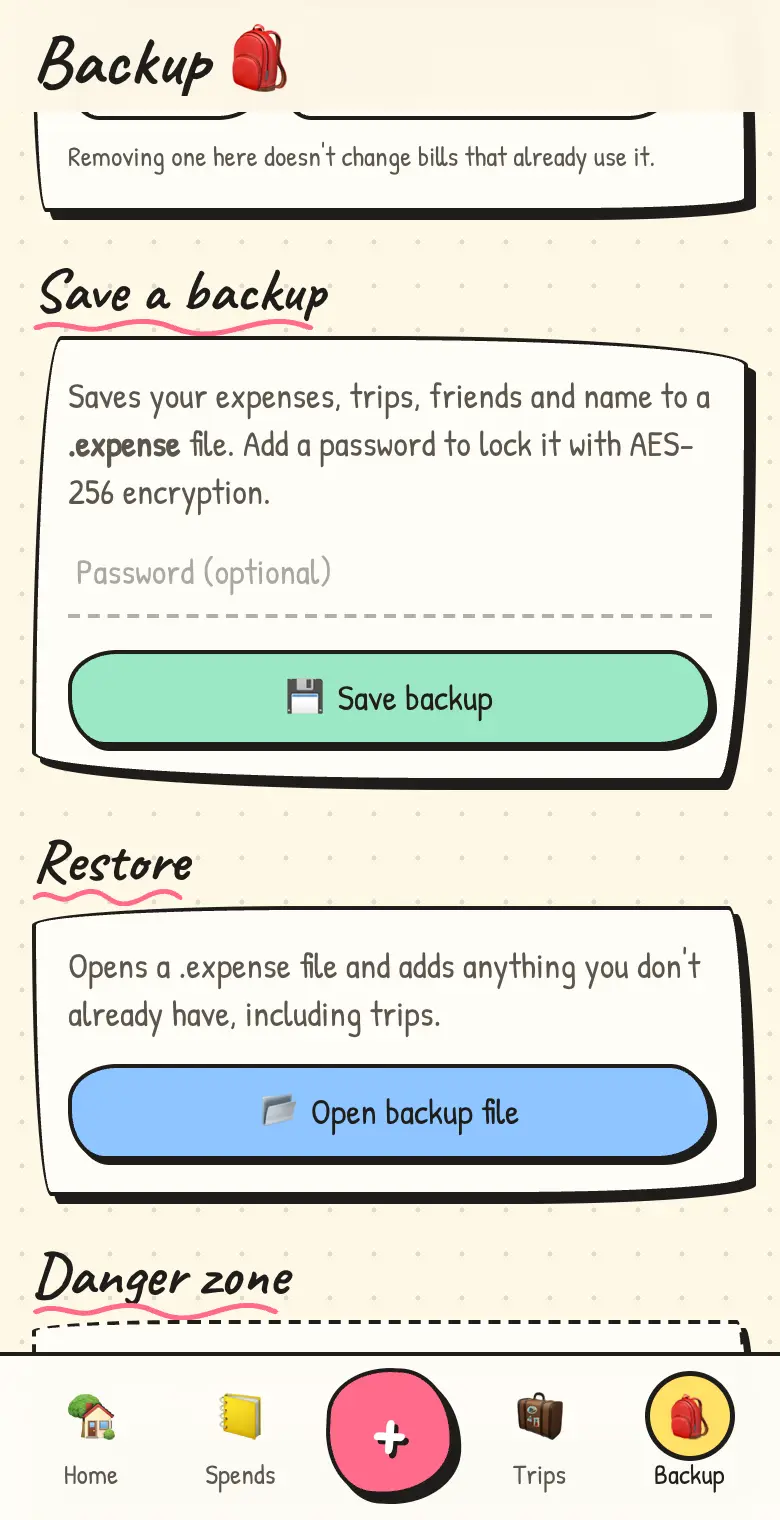
- Go to 🎒 Backup → Save backup. Add a password if you want it locked.
- Keep the
.expensefile somewhere safe (Google Drive, email it to yourself…). - On your new phone, open Doodle Bill → Backup → Open backup file.
💡 Groups, friends and your name come back too.
8. Put it on your home screen
Doodle Bill works like a normal app, even offline:
- iPhone (Safari): tap the Share button → Add to Home Screen.
- Android (Chrome): tap ⋮ → Install app (or Add to Home screen).
- Computer (Chrome / Edge): click the install icon in the address bar.
💡 Installing also tells your browser to keep your data safe. Safari can clear websites' storage after a week without visits.
On a computer
You get a bigger layout: a list with a receipt beside it, and a live preview while you type. Handy keys:
| N | New spend (inside a group, adds to that group) |
| / | Search your spends |
| H S G B | Home, Spends, Groups, Backup |
| Esc | Go back |
Questions
Do I need an account?
No. Just open the app and start. There's nothing to sign up for.
Where is my data stored?
Only on this device, inside your browser. It isn't uploaded anywhere. When you share, the data travels inside the link itself. More about privacy →
I cleared my browser or got a new phone. Is my data gone?
Clearing site data removes it, so keep a backup (step 7). On a new phone, open your .expense backup file to get everything back.
A friend sent me a link. What do I do?
Just open it. For a bill or a month, you'll see everything, and can tap Save to mine. For a trip, pick your name to join. Later links from the trip update your copy automatically.
Why are some shares off by a paisa?
Money can't be split into less than a paisa. The leftover goes to one person so the shares still add up to the exact bill.
Does it work offline?
Yes. After the first visit, everything works without internet. You only need a connection to send links.